From the blog
Foreign Trade Checkout Amount Mismatch
If the amount you see on a product page doesn't match the amount on the checkout page, don't pay yet. The product page price alone cannot tell you whether the e...
If the amount you see on a product page doesn't match the amount on the checkout page, don't pay yet. The product page price alone cannot tell you whether the extra amount on the checkout page is due to variants, quantity, currency, or service fees, nor can it be used to conclude that there is a system error in the Foreign Trade page or purchase flow.
Clarify the Scope of Foreign Trade Checkout Amount Verification
This troubleshooting guide focuses on one issue: the same Foreign Trade product shows a different amount after moving from the product page to the cart or checkout page. The goal is to identify which field the amount change corresponds to and determine whether you should proceed with payment before the reason is explained.
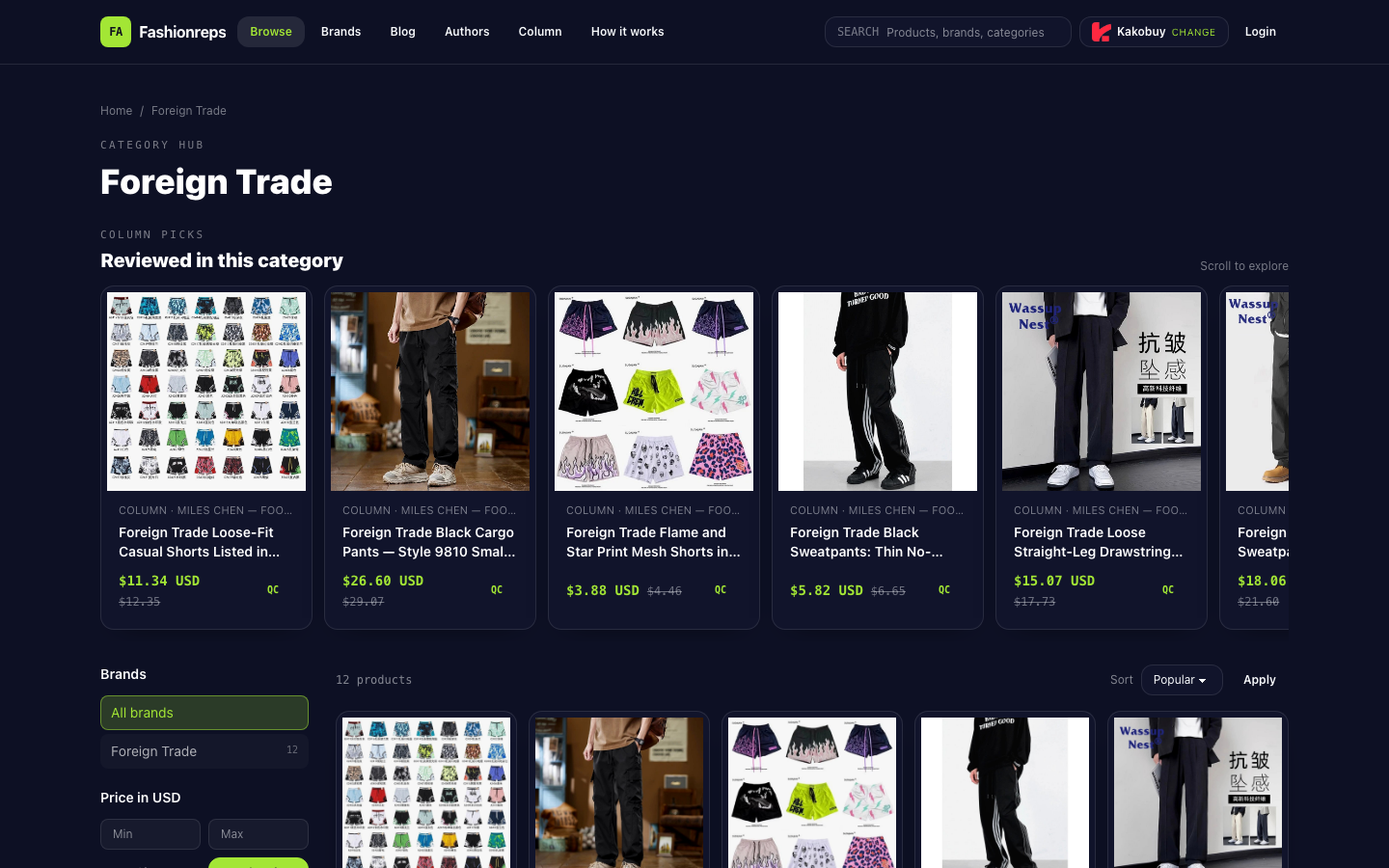
The Foreign Trade category page currently displays product catalog information, including product names, available size or color ranges, and reference prices in US dollars. For example, the page lists reference prices and previous reference prices for some products, but these catalog fields alone do not prove the final order amount, nor do they indicate that shipping costs, agent service fees, taxes, or other checkout items have been finalized.
Save Current Evidence from Product, Cart, and Checkout Pages
First, thoroughly record the status of the same product on different pages. Do not just screenshot the total price:
- Product name or product ID.
- Selected variants such as color, size, length, lining, etc.
- Purchase quantity.
- Currency and amount displayed on the product page.
- Unit price, quantity, and subtotal of the product in the cart.
- Product amount, shipping, service fees, taxes, discounts, and total payable on the checkout page.
- Time displayed on the page, order draft number, or other identifying information.
When taking screenshots, keep the identifying information at the top of the page or in the order area to avoid saving an amount screenshot that cannot be linked to a specific product and variant. Do not modify the quantity, switch agent platforms, or delete the product before recording, as this may make it difficult to determine whether the difference occurred before entering the cart or during checkout.
Compare Product Variants, Quantity, Currency, and Service Fees Item by Item
Verify in the following order: first confirm the product itself, then check checkout add-ons:
- Confirm the product is the same. Check that the product name, ID, image, and linked page are consistent. The Foreign Trade category page contains multiple pants products, so you cannot assume that two records refer to the same product based solely on "black sweatpants" or similar titles.
- Confirm the variants match. Compare color, size, fit, lining, and other options. The page may display multiple colors, sizes, or configurations at once, and the reference price in the catalog may not cover all variants. The current source only proves that the page displays the corresponding product and some specifications, not the final price for each variant.
- Confirm the quantity hasn't changed. Check the quantity in the cart and checkout page. A change in quantity will directly affect the product subtotal; if the quantity is more than one, also confirm whether the page shows the unit price or the total price.
- Confirm the currency and decimal places. Compare the currency symbols on the product, cart, and checkout pages. Do not directly subtract amounts in different currencies or after conversion. If the page only shows converted amounts without a clear exchange rate or original amount, list the conversion difference as an item to be confirmed.
- Break down the checkout fields. Split the total into product subtotal, discounts, shipping, service fees, taxes, and other fees. The reference price on the product page can only be initially compared with the product subtotal, not directly with the total payable that includes additional fees.
- Check if discounts are still valid. If the product page shows a previous reference price or other price hints, do not assume that this is a currently available discount. Only discounts explicitly listed on the checkout page can be included in the current order's amount calculation.
You can use a simple difference formula to organize your evidence:
Checkout total payable − Product subtotal − Explicitly listed discounts = Amount to be explained
This result is only a tool for locating the issue, not proof that the fee is incorrect. If the amount to be explained has no corresponding field, the field name is unclear, or the same field keeps changing after refresh, you should pause payment.
Distinguish Between Page Facts, Fields to Be Confirmed, and Editorial Judgments
When troubleshooting, do not expand catalog page information into unverified conclusions. You can record in three categories:
- Page facts: The name, specification range, reference price, currency, and page notices actually displayed on the product page.
- Fields to be confirmed: Additional fees, exchange rates, discount conditions, service items, and their calculation methods that appear in the cart or checkout page.
- Editorial judgments: When the amount composition cannot be reconciled, the product variants are inconsistent, or the page cannot explain the source of the fees, do not pay.
For example, the source page can support the fact that "the Foreign Trade category page displays several products and US dollar reference prices," but it cannot support statements such as "the checkout price definitely includes a certain shipping fee," "a certain fee is definitely charged by the platform," or "the amount change is definitely a system error." When there is no corresponding checkout evidence, uncertainty should be retained.
Confirm the Reason for the Difference Through Official Support Channels
After preparing screenshots of the product page, cart, and checkout page, submit a complete inquiry through the official support channel provided in the current purchase flow. Avoid sending only "Why is it more expensive?" The inquiry should include:
- Product name or ID.
- Selected color, size, and quantity.
- Product page amount, cart amount, and checkout total.
- Currency for each amount.
- Fee fields that cannot be matched.
- Order draft or session identification information, if provided on the page.
You can ask the support team to explain item by item: whether the product subtotal changed due to a variant change, whether the difference is shipping or service fees, which exchange rate was used, whether the discount applies to that variant, and whether the confirmed final payable amount will continue to change. Do not treat the product reference price from the source page as a price confirmed by customer service.
Before the other party clearly explains, do not "test" the amount by repeatedly refreshing, submitting orders, or initiating payments. Repeated actions may generate multiple order drafts, duplicate authorizations, or new amount records, and the current evidence cannot determine the consequences.
Conditions for Pausing Payment When the Amount Difference Cannot Be Explained
Stop payment and retain evidence if any of the following conditions are met:
- The checkout total cannot be explained by the product subtotal, discounts, and listed fees.
- The color, size, configuration, or quantity on the product page and checkout page is inconsistent.
- The currency or exchange rate is not clearly indicated, and the difference cannot be verified.
- The page repeatedly changes amounts after refresh or going back, without new fee explanations.
- Fee names are vague, and the support channel cannot explain the calculation basis.
- The total payable changes again between the checkout page and the payment confirmation page.
- Payment is required before obtaining a fee breakdown, and refund or cancellation conditions cannot be confirmed before payment.
If all fields match, variants and quantity are consistent, currency is clear, and the official support channel confirms the reason for the difference, you can decide whether to proceed based on the confirmed final amount. Even if the page shows a reference price, do not treat it as a guarantee of the checkout amount; the currently verifiable information is insufficient to prove the final transaction price, inventory, shipping, or other checkout conditions for any specific product.
Continue reading