From the blog
Verifying Golden Goose Purchase Evidence When Images Load
Scope of Evidence When Golden Goose Images Display Issues When a Golden Goose product page only shows some images, don't immediately judge "few images" as the p...
Scope of Evidence When Golden Goose Images Display Issues
When a Golden Goose product page only shows some images, don't immediately judge "few images" as the product not existing, a page malfunction, or abnormal quality. Whether images are complete only indicates the limited scope of evidence presented on the current page. Purchase judgment should be based on cross-checking the product title, specifications, page fields, visible images, and subsequent supplementary information. 🔍
fashionreps positions itself as a product discovery and information organization platform. The purchase button leads to an external shopping agent chosen by the user, and orders, payments, and shipping are handled by the agent's website. Therefore, when product page images are incomplete, first complete the page evidence record, then decide whether to open the agent's order page.
This article addresses only one issue: When the image area on a Golden Goose product page does not load completely, how to confirm whether the currently visible images belong to the correct product, and determine whether to pause purchase judgment.
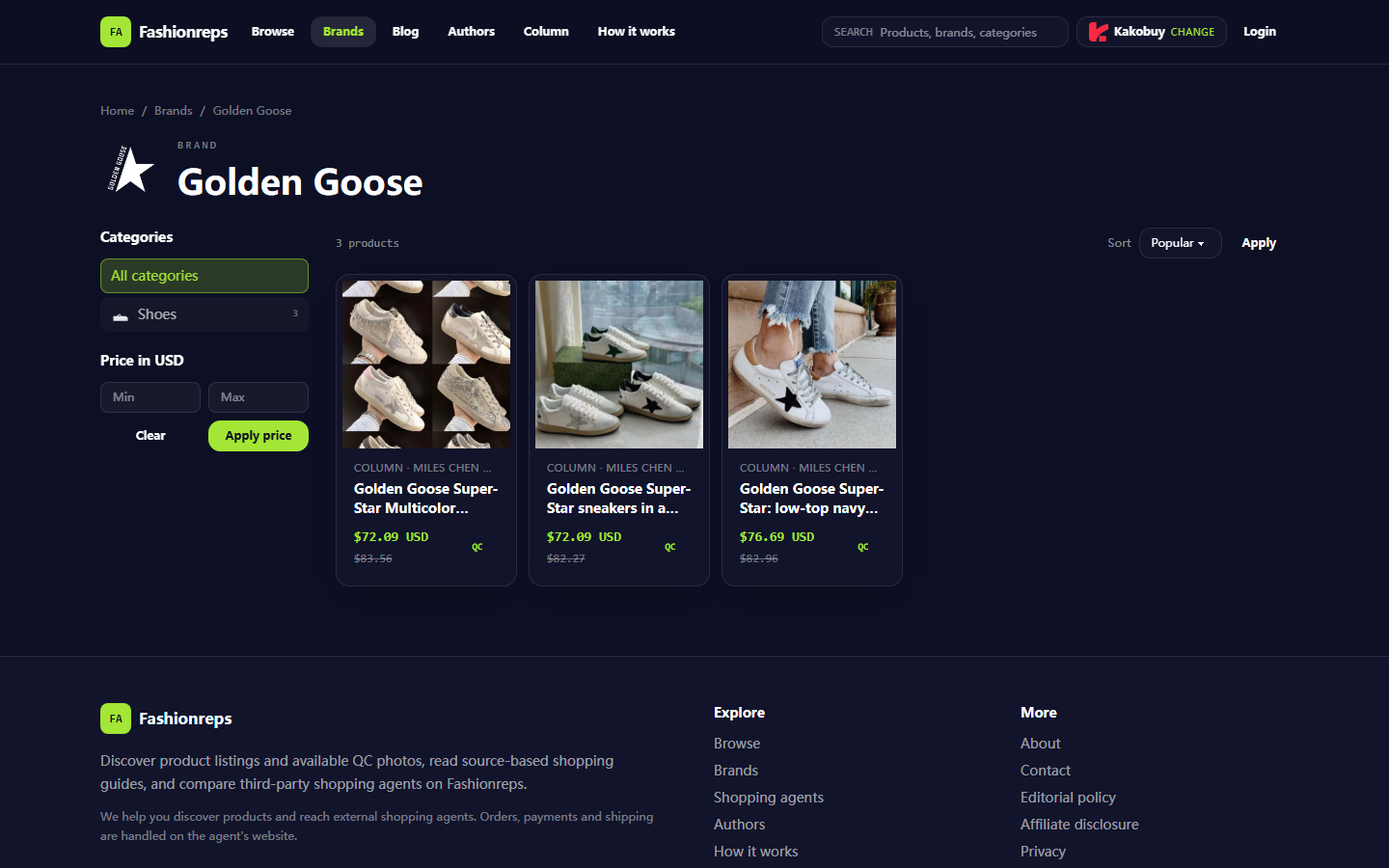
The illustrated page is a screenshot of fashionreps' Golden Goose brand catalog. The screenshot shows 3 product entries, and the page provides category, price filter, and reference price fields; whether images are complete still needs further verification on the specific product page.
Record the Product Page, Image Area, and Access Time
First save the page address, product title, access time, and the image area visible at that time. Don't save only a blurry screenshot, and don't overwrite the original record after refreshing. The page may display different results due to caching, network response, image lazy loading, or login status changes.
It is recommended to record the following:
- The complete text of the product title, including color, material, shoe style, or series name
- The price field and currency displayed on the page
- How many main images, thumbnails, and detail images are shown in the image area
- Which positions are blank, failed to load, or only show placeholder frames
- Whether the page can normally display product specifications, sizes, and other visible fields
- Access time and the page path used
The Golden Goose products listed in the screenshot include descriptions such as Multicolor Sneakers, graffiti multicolor finish, and navy leather sneakers with a lamb-skin lining. They cannot be considered the same product just because of the brand name. 📌
Distinguish Between Missing Main Images, Abnormal Thumbnails, and Unloaded Detail Images
Incomplete images usually need to be classified by position first, because different positions correspond to different evidentiary values.
| Phenomenon | What can be confirmed | What cannot be confirmed yet |
|---|---|---|
| Main image displayed, some thumbnails empty | The current product has at least one visible image | Whether the sole, heel, inner label, and details exist |
| Main image empty, title and specifications displayed normally | The page may still identify the product object | Whether the image belongs to the current product and whether appearance details are consistent |
| Thumbnails displayed but detail images fail when clicked | The page may have loaded thumbnail resources | High-definition details, flaws, and size markings |
| Multiple product images missing simultaneously | May be a page resource or loading path issue | Cannot conclude that a particular product has no images |
| Images displayed but title or specifications mismatch | There is a clear verification risk in the page object | Cannot confirm that the image is the target product |
If only one image fails to load, while the title, specifications, and other images remain consistent, it can be recorded as partial image missing. If images, title, and specifications show inconsistency at the same time, purchase judgment should be paused, and do not directly enter the external agent's order page. ⚠️
Cross-Confirm the Product Object Using Title, Specifications, and Visible Fields
The core of cross-checking is not the number of images, but whether multiple fields point to the same product.
Step one, check the color, shoe style, and material in the title. For example, Multicolor, graffiti multicolor, and navy leather are different appearance descriptions and cannot be substituted for one another.
Step two, check the price field on the product card or detail page. The reference prices shown in the screenshot are $72.09, $72.09, and $76.69, respectively, along with previous reference prices. These numbers can only serve as reference information displayed on the page at that time, not as the current inventory, final payment amount, or price including shipping.
Step three, check whether the page displays a size range. Some product descriptions in the screenshot include "full unisex size run" or "full EU size run," but such descriptions still cannot replace real-time size and inventory confirmation on the external agent's page.
Step four, check whether the visual features in the images match the text. If the text says "navy leather sneakers" but the visible image shows a significantly different main color or shoe style, mark it as pending verification rather than assuming an image loading error.
What Evidence to Preserve Before Clearing Cache or Switching Page Paths
Before refreshing, clearing cache, or switching devices, save the original state. This way, even if the page display recovers later, you can distinguish between "the original page indeed lacked images" and "the new loading result is normal."
It is recommended to proceed in the following order:
- Save the product title, page address, access time, and currently visible fields.
- Capture a complete screenshot including the title, price, specifications, and image area.
- Separately capture the location where images fail to load, preserving placeholder frames or blank areas.
- Refresh only once, and observe whether the main image and thumbnails recover.
- If still incomplete, use an incognito window or another page path to recheck.
- Record each recheck result separately, and do not combine results from different times into one screenshot.
If images display normally after navigating from the brand catalog to the product detail page, it indicates that the catalog page and detail page may render differently; if both lack key images, retain the missing-image record and request supplementary information. 🧭
Do not treat the appearance of one image after refreshing as complete evidence. Still confirm that its title, color, material, and specifications match the target product.
How to Request Supplementary Information When Images Remain Incomplete
When key images are missing, the help request should specify what is missing, rather than just sending "please provide images." You can request:
- Front, side, and sole images of the current product
- Details related to size or style, such as tongue, insole, heel, and inner label
- The product title or product number corresponding to the images
- Whether the current page still has available sizes and inventory
- Whether the images are from the current product, not other products in the same series
Do not send order numbers, payment cards, complete shipping labels, or passport information. If you need to provide screenshots, cover personal information first, and keep only the title, specifications, and image area needed for product verification.
Since fashionreps pages delegate purchase actions to user-selected external shopping agents, subsequent inventory, payment amount, shipping, warehouse inspection, and after-sales conditions should be confirmed separately on the actual agent website. The reference prices on the page cannot replace this real-time information. 💬
When to Pause Purchase Judgment Due to Missing Key Images
It is recommended to pause purchase judgment if any of the following occurs:
- Main image is missing, and there are no other images to confirm color, shoe style, or material
- Images clearly conflict with the product title or specifications
- The page cannot confirm that the images belong to the current product
- Key details involve size, material, sole, or obvious flaws, but corresponding images are not visible
- The product object, specifications, or price on the external shopping agent's page is inconsistent with the source page
- After repeated refreshes, it is still impossible to confirm whether images have finished loading
Pausing does not mean concluding that the product has problems, but rather that the current evidence is insufficient to support the next purchase action. You can save records, request supplementary images, or choose a product entry with more complete evidence.
Final Action: Establish a Golden Goose Page Verification Record
After completing verification, keep a brief record: whether the page title is consistent, the location of missing images, visible specifications, reference price, recheck time, whether supplementary information was requested, and whether purchase judgment was paused.
For the three Golden Goose products listed in the screenshot, the most important distinguishing points are color and style description, reference price, and size statement. If the target is the Multicolor or graffiti multicolor style, do not use images from the navy leather style as substitute evidence; the reverse also applies.
The actionable conclusion is: When images are incomplete, first confirm the product object, then confirm key details, and finally enter the external agent's real-time page to check inventory, payment, and delivery. If images that could affect the purchase decision are still missing, holding off on ordering is usually safer than guessing based on an incomplete view. ✅
Continue reading