From the blog
NBA Jersey Number Missing in Order Summary? Verify & Submit
When you've selected a number for an NBA jersey but the order summary doesn't show it, don't pay right away. A missing number in the order summary could be just...
When you've selected a number for an NBA jersey but the order summary doesn't show it, don't pay right away. A missing number in the order summary could be just a display issue, or the number might not have been submitted with the variant; treat it as unverified until you can confirm.
First, pin down the product and selection details
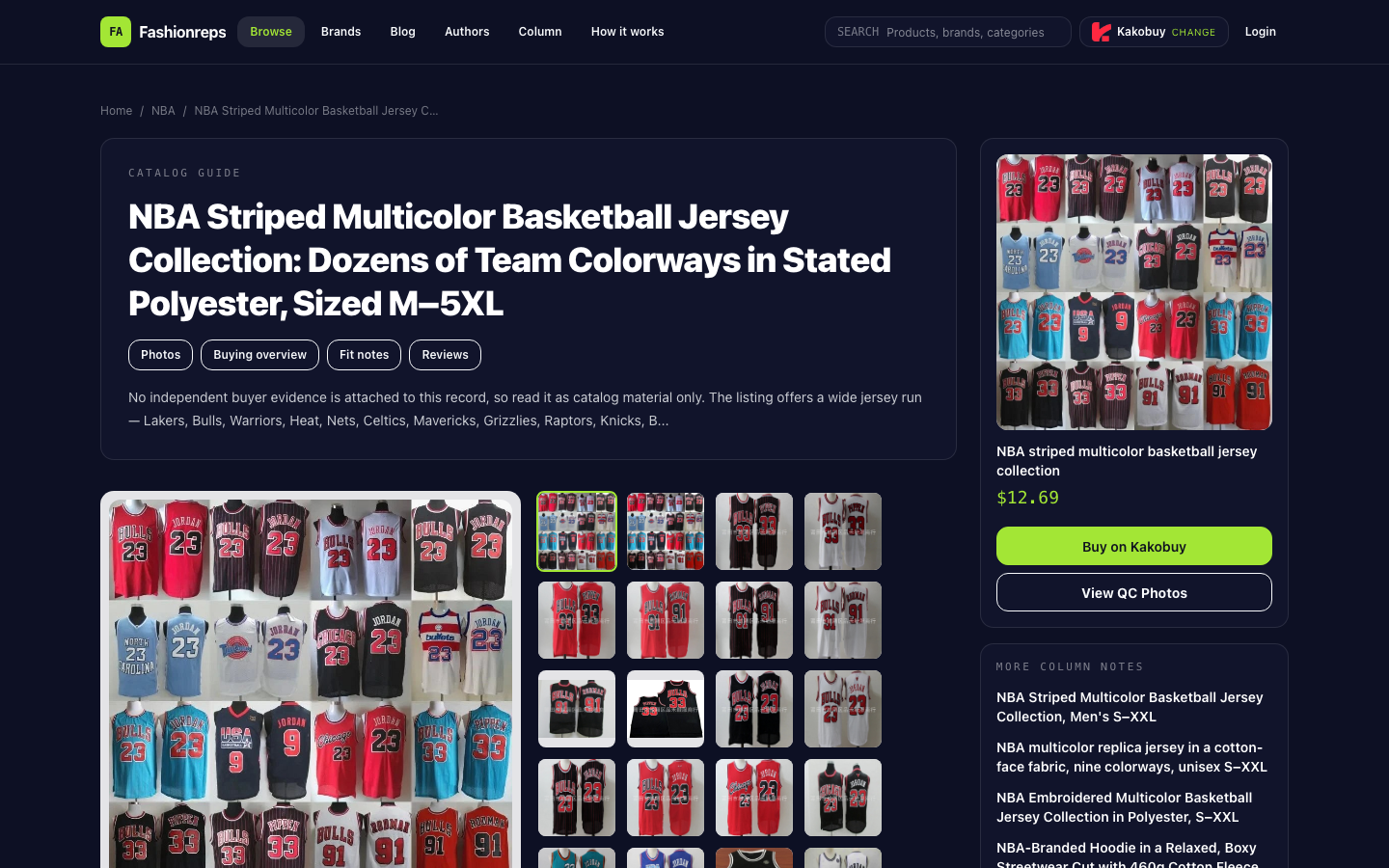
Go back to the product page and save evidence that identifies this jersey: the product link, team or style, number, size, quantity, and the variant fields shown on the page. When taking screenshots, make sure the product name, selected options, and page state all appear in the frame, not just the number input field without context.
This product listing shows multiple team and style options, with sizes indicated by height and weight ranges from M to 5XL; the page also notes there is no independent buyer evidence. So for later verification, rely on the actual fields in the current page and order records, not the product title, team name, or your own intention as proof that the number was submitted.
Check in order whether the number made it into the order
1. Check what kind of field the number is
Confirm whether the number is a separate option from team, style, and size, or whether it needs to be entered in a notes, customization, or other text field. If the page shows team, color, collar, size, and number at the same time, record each current value to avoid remembering only the number and missing the corresponding style.
2. Save the page state after making your selection
After entering the number, don't refresh or leave the page. Save a screenshot that includes the number, other variants, and quantity, then proceed to add to cart or submit the order. If there's a save, confirm, apply, or update button, click it first, then check whether your selection is still there.
3. Check the product line in the cart
In the cart, expand the product details or edit options to see if the number appears in the variant summary, customization info, or order notes. If the cart only shows product name, team, and size with no number field at all, don't assume the number was saved just because the quantity or price changed.
4. Check the order draft or pre-payment summary
Before final submission, compare the following items one by one:
- Is the product link or product name correct?
- Does the team, color, or style match the product page?
- Does the number appear as readable text in the variant, customization info, or notes?
- Are the size and quantity correct?
- Is the order status still editable or in draft?
If the number only appears in the input field on the product page but not in the cart, order draft, or pre-payment summary, treat it as not yet confirmed for submission.
Distinguish three outcomes
| What you see | How to judge | Next step |
|---|---|---|
| Both product page and order summary show the same number | The number at least has visible evidence in the current order summary | Save the order summary screenshot, then continue checking other variants |
| Product page shows the number, but order summary does not | Cannot prove the number was submitted with the order | Stop payment and contact the ordering platform support first |
| After refreshing or going back, the number disappears and there's no order draft record | The selection may not have been saved; submission status cannot be confirmed | Re-record your steps; do not pay repeatedly or submit duplicates |
A missing number on the page doesn't necessarily mean the whole target site is malfunctioning. It could be that the number is handled via notes, the page only displays some variants, or the input wasn't saved. Without an order record or platform feedback, don't speculate further on the specific cause.
What to submit to support
If the order draft still doesn't clearly show the number, use the online chat, ticket system, or order support channel provided by the actual ordering platform and submit complete information in one go:
- Product page link;
- Team or specific style;
- Number, size, and quantity;
- Screenshot after completing selection on the product page;
- Cart or order summary screenshot;
- Steps where the number disappeared, e.g., entered number, clicked save, added to cart then returned to summary;
- Order number or draft number, if generated.
In your message, directly ask: "Has this order saved the specified number, and in which field should I confirm it?" Don't just say "the page has a problem." If support asks you to reorder, first confirm that the old order or draft won't be charged twice before submitting a new one.
Stop payment in these situations
Do not pay if any of the following occur:
- The order summary has no number and there's no order note to check;
- The number only exists in the input field on a product page you've left;
- The team, style, or size shown on the page doesn't match your original selection;
- After refreshing, the number disappears and the platform has no clear save record;
- Support hasn't confirmed how the number will be passed to the seller;
- You need to submit the order repeatedly just to "see if it saves."
Keep continuous evidence from the product page, cart, and order draft before paying. Only proceed when the number clearly appears in the final verifiable record, or platform support explicitly confirms how it will be submitted.
Continue reading