From the blog
Meetstudio Return Request Has No Status
Not seeing a status after submitting doesn't mean the request has failed, nor can it be concluded that it has entered processing. The most important thing now i...
Not seeing a status after submitting doesn't mean the request has failed, nor can it be concluded that it has entered processing. The most important thing now is to first secure existing evidence, then check for a request number, order record, or message notification to avoid duplicate submissions or payments.
First confirm which item you are handling
First save the item and order information corresponding to this request, including:
- Item name, style, and variant such as size or color
- Order number or transaction identifier from payment records
- Item page URL
- Approximate time and time zone of request submission
- Request reason, uploaded photos, or other attachments
- Screenshots of the submission completion page, pop-up, email, or in-site message
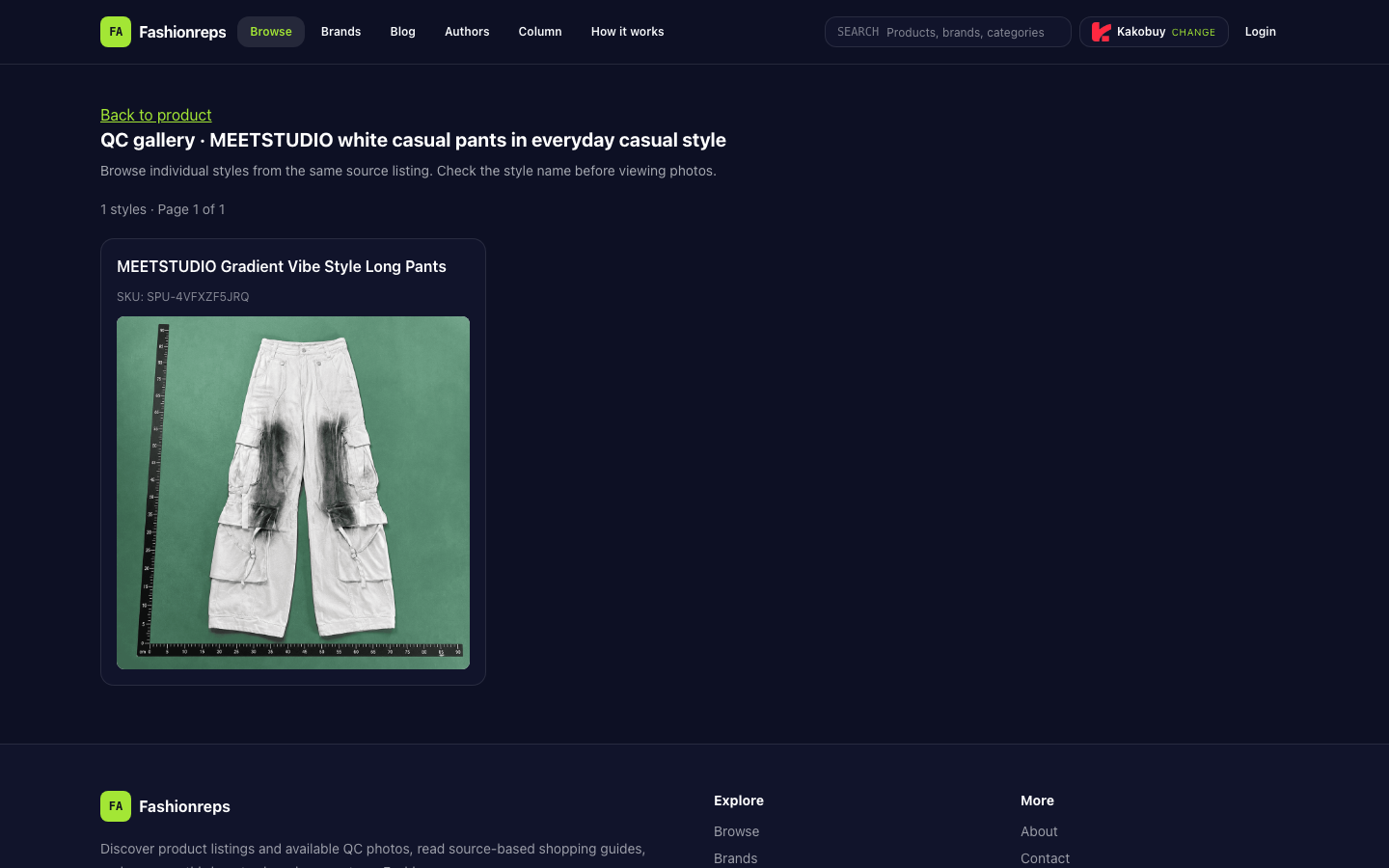
The currently verifiable item source page shows that it corresponds to MEETSTUDIO Gradient Vibe Style Long Pants, SKU SPU-4VFXZF5JRQ. This information can only help you confirm the item, not prove that the return request has been received, nor that the request is eligible for a refund or exchange.
Look for status traces in order
1. Return to the original order details
Reopen the disputed order and view the order status, after-sales, or return/exchange sections. Focus on finding the request number, processing status, submission time, and attachment records. Do not infer that the return request has failed just because the page still shows "Paid", "Shipped", or other normal order statuses; normal order status and after-sales request status may not be the same field.
2. Check the original return/exchange request entry
If the page still shows the request entry, first observe whether there is a "View Request", "Request Records", "Processing", or similar submitted prompt. If the entry only shows resubmission and there is no history or number, do not immediately resend the request; first capture the current page and record the access time.
3. Check in-site messages and registered email
Search for notifications related to the order number, item name, or request time. Check inbox, spam, in-site messages, and account notifications, but do not treat automatic receipt confirmation as final approval. Receipt confirmation usually only indicates that information may have been received by the system, not that the return result has been determined.
4. Compare evidence before and after submission
Compare the page saved before submission with the page after submission to confirm if any of the following changes occurred:
- A new request number appears
- Request time is recorded
- Attachments remain visible
- After-sales status is added to the order page
- A clear success prompt appears on the page
- Email or in-site message corresponds to the order
If there is only a page refresh after clicking the button, with no number, success prompt, order change, or notification, the status should be recorded as "unconfirmed" rather than "successful" or "failed".
What information cannot be directly inferred at present
Based solely on the item page or QC page, the following cannot be confirmed:
- Whether the return request has entered the backend queue
- Whether the platform has approved the request
- Whether a return address or processing number has been generated
- Refund amount, refund time, or shipping cost responsibility
- Whether the lack of status is due to system delay, permission issues, or submission failure
The item source page can help verify the item's identity but does not provide the processing result of this request. Without order backend records, request numbers, or official notifications, these unknown information should not be written as definitive conclusions.
When to contact official support
If the order details, return entry, message center, and email all show no corresponding records, prepare a concise timeline and then contact the official support channel of the target site. The timeline can be organized in the following format:
- Order number and item identification information.
- Payment completion time.
- Time of return request submission.
- Reason for request and whether attachments were uploaded.
- Page prompt seen after submission.
- Pages and message channels checked afterwards.
- Currently missing records, such as request number or processing status.
When contacting, provide only the necessary information related to the order, and explicitly ask two things: whether the request has been received by the system, and whether a unique request number has been generated. If support staff ask for additional materials, keep their reply and the time of resubmission.
Stop repeated operations before these situations occur
If any of the following situations occur, do not resubmit or repay due to unclear status:
- The page does not clearly state that the previous submission failed
- A request number or submission success record already exists
- Support channel has not confirmed that the previous request does not exist
- The page requires repayment without explaining the status of the original payment
- You cannot distinguish between the new request and the order corresponding to the original request
Only consider re-operating after official confirmation that the original request was not received, or the page clearly shows submission failure, and you have saved failure evidence. Before resubmitting, still confirm that the order number, item variant, request reason, and attachments match the original records.
As of now, the verified information can only confirm the corresponding item page and its SKU, and cannot confirm Meetstudio's return request status, processing time, or backend reasons. Therefore, the safest conclusion is: first save evidence, check visible records item by item; before the existence of the request is confirmed, do not resubmit, do not repay, and request clear receipt result or request number from official support.
Continue reading