From the blog
Loro Piana Item Missing From Parcel List
If warehouse records show an item has been stocked but it doesn't appear on the parcel consolidation page or in your parcel draft, don't submit the parcel right...
If warehouse records show an item has been stocked but it doesn't appear on the parcel consolidation page or in your parcel draft, don't submit the parcel right away or immediately place a duplicate order. First, save the item link, order number, stocking record, inventory ID, and parcel draft together, then check step by step whether the item is unassigned, has been unpacked, is delayed in page sync, or whether there isn't enough evidence yet to determine its status.
First confirm you're looking at the same item
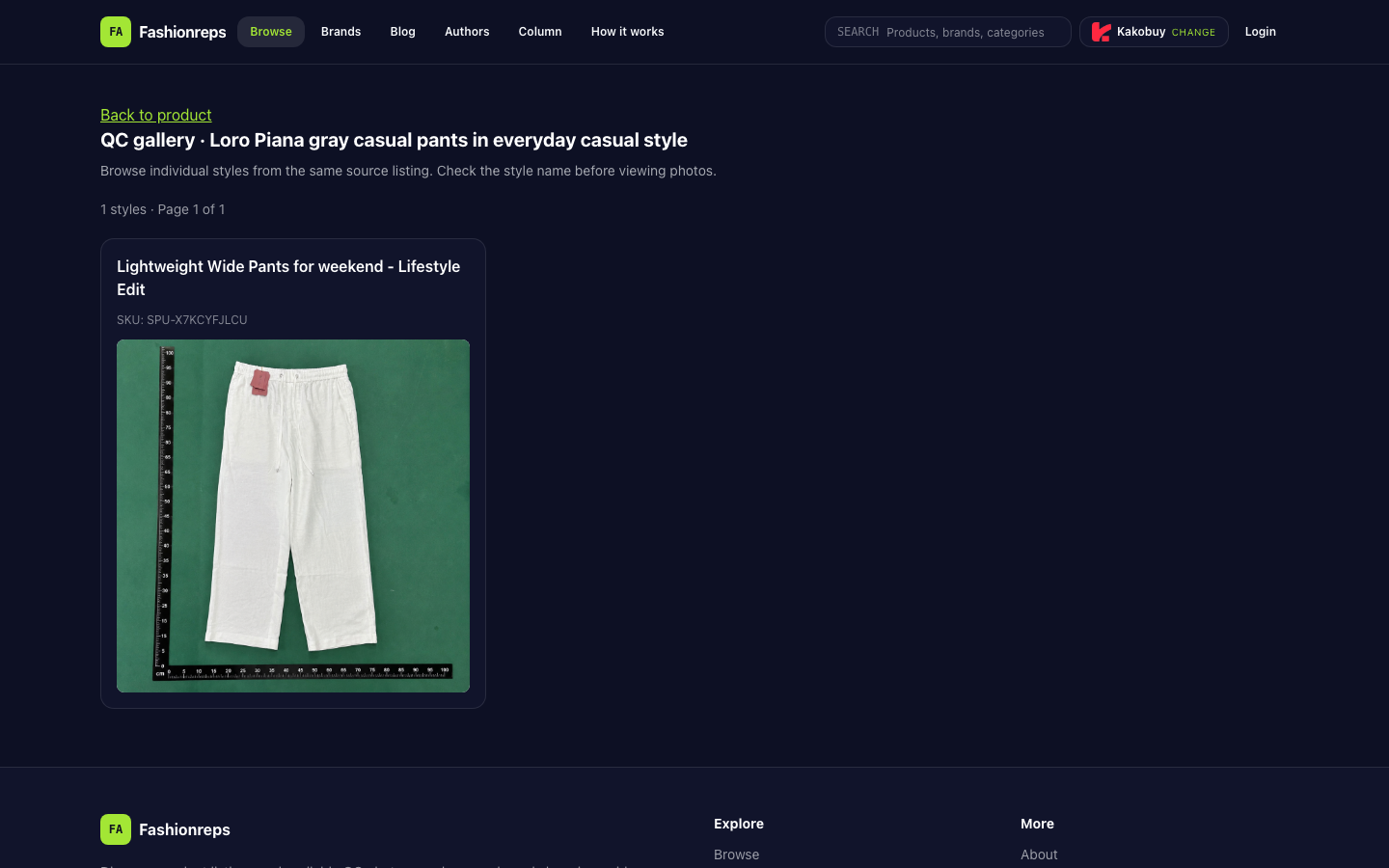
Fashion-reps pages provide item source info and QC photo links, but orders, payment, and shipping are handled by external shopping agents. So an item page showing QC records doesn't mean the external agent's backend has added that item to your current parcel. The QC page in the image above shows only one style, named Lightweight Wide Pants for weekend - Lifestyle Edit, with SKU SPU-X7KCYFJLCU. When verifying, go by your actual order and the agent's backend records, not just the item title.
Save the following information first:
- Item page link and the style name shown on the page
- Order number, sub-order number, or purchase record ID
- Stocking notification, warehouse photos, or inventory record screenshots
- Inventory ID, storage location, and stocking time
- Current parcel draft number and item list screenshot
- Any actions you took to edit, unpack, consolidate, or cancel parcels
If any of these are missing, fill in the records before continuing. Especially avoid mixing up different orders, sizes, or inventory IDs for the same style.
Compare five sets of information in order
1. Compare order and stocking record
Confirm that the item quantity, style, color, and size in the order exactly match the stocking record. If the order shows multiple items but the inventory record only covers part of the quantity, the parcel list might be missing just one of them; if the order numbers don't match, the two records can't be treated as the same item.
2. Compare inventory ID and location
Check the inventory ID, storage location, or shelf info in the stocking record, then see if the parcel edit page only shows assignable inventory. An item being in stock only means the inventory exists in warehouse records; it doesn't prove it's already assigned to the current parcel.
3. Check if the parcel has already been assigned items
Confirm whether that inventory unit is already assigned to another parcel draft, pending parcel, or split parcel. If the system doesn't allow the same inventory unit to be assigned to multiple parcels at once, the item may no longer appear in the current draft but still exist in another parcel record.
4. Check for unpacking or editing
Look at the parcel edit history to see if the item was removed, unpacked, or transferred. Don't just look at the current page; if the page keeps a log of actions, compare item quantities before and after the most recent edit.
5. Recheck page status
Exit the current parcel draft and reopen it, and note the time the page was displayed. If the stocking record was just created, the page might not have synced yet. Reloading is only a verification step, not proof that sync has completed.
Determine next steps based on findings
| Verification result | Action to take |
|---|---|
| Item not yet assigned to any parcel | After confirming inventory ID and item attributes match, try adding from the parcel edit page; don't repurchase |
| Item already assigned to another parcel | First confirm which parcel is your intended one, then decide whether to adjust parcel assignment |
| Item was unpacked or removed | Check the edit history to see if you initiated the action; if unsure, pause further actions |
| Stocking record exists but not on parcel page, and status just updated | Save the time and screenshot, wait until the page status is clear before continuing |
| Can't confirm inventory ownership or quantity | Stop submitting the parcel and send complete records to official support |
When not to submit a parcel
Pause submission if any of the following apply:
- The inventory ID in the stocking record doesn't match the one in the parcel draft
- Item quantity, color, or size still differs
- It's unclear whether the item is already assigned to another parcel
- The parcel page and stocking record contradict each other on status
- The page only shows the item exists but without clear parcel assignment
- You can't confirm whether you've already submitted a parcel for the same item
Submitting in these cases could cause missed shipments, duplicate processing, or make it hard to assign responsibility later. Also, don't place a new order just because the item is temporarily absent from the parcel list, unless official support clearly confirms the original order doesn't exist or can't be fulfilled.
What to submit to official support
Since Fashion-reps pages are not a backend for orders, warehousing, or shipping, you should ask the shopping agent's official support channel that actually processes orders and inventory about the specific parcel status. When submitting, include all of the following at once:
- Item page link
- Order number and inventory ID
- Stocking record screenshot and time
- Current parcel draft screenshot
- Parcel number or draft number
- Any unpacking, consolidation, or editing actions already taken
- The specific question you want them to confirm
Write the question clearly, for example: "Please confirm whether the inventory ID is assigned to another parcel; if not, please state when this item can be added to the parcel draft." Ask them to clearly return the inventory assignment, parcel assignment, and next-step resolution, and don't accept just "processing" as a final answer.
Until you get a clear result, keep all original screenshots and records, don't delete the parcel draft, and don't create new parcels repeatedly. Only proceed to submit when the inventory ID, item attributes, and parcel assignment all match, and the page status is clear.
Continue reading