From the blog
lanvin Order Total Mismatch: Check Variants & Fees
If the amount shown on the lanvin product page differs from the cart or checkout, don't resubmit the order right away, and don't assume the platform is at fault...
If the amount shown on the lanvin product page differs from the cart or checkout, don't resubmit the order right away, and don't assume the platform is at fault based only on the page total. First, align the product information and fee fields on the product page, cart, and checkout, then decide whether to proceed with payment. The Fashionreps page states that order, payment, and shipping are handled by an external shopping agent selected by the user, so the checkout amount may also include agent-side fee items.
View the lanvin product page
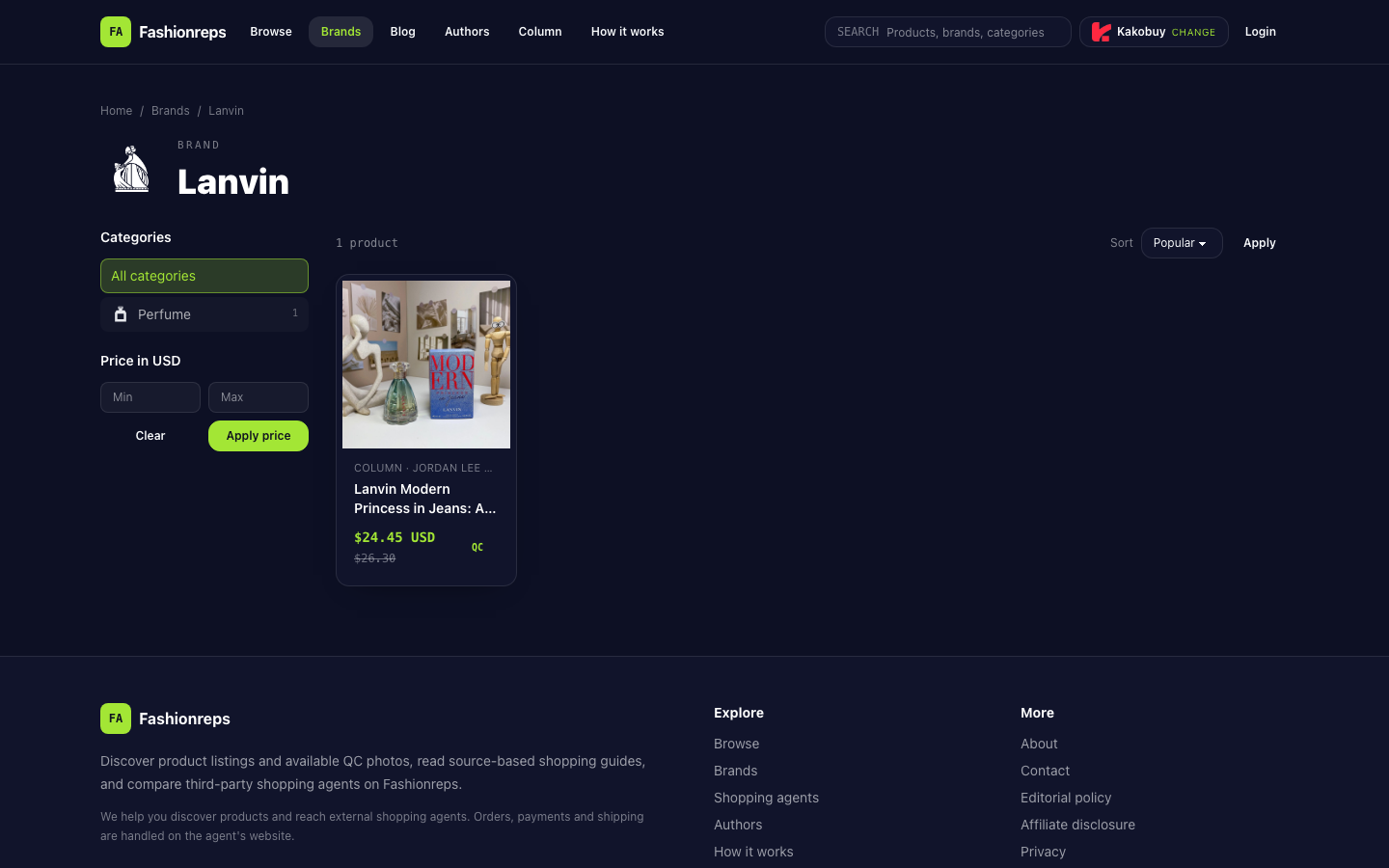
First confirm you're comparing the same product
The product page currently displays the Lanvin Modern Princess in Jeans perfume, with specifications including 90ml. The page shows a reference price of $24.45 and an old reference price of $26.30. This page price can only be taken as the information displayed on the product page at that moment; you cannot directly infer the final amount due in the cart or checkout.
Check that the following items are exactly the same:
- Product name and product link are identical.
- Selected color, size, capacity, or other variant is the same.
- Quantity is still 1, and there are no duplicate items in the cart.
- You haven't accidentally added the same product to carts of different shopping agents or different stores.
- The currency used for the product page price is the same as the currency in the cart and checkout.
If the product page shows a reference price while the cart shows a price re-read by the agent, the difference does not necessarily mean a duplicate charge has occurred. Only after the product, variant, quantity, and currency all match should a price difference be worth further investigation.
Break down the amount difference by field
Don't just compare the most prominent total on the page. Break the amount down into product subtotal, discounts, service fees, payment fees, and other clearly listed items.
| Verification field | What to record | Key focus |
|---|---|---|
| Product subtotal | Unit price, quantity, variant | Whether subtotal changed due to quantity or variant |
| Currency | Page currency and checkout currency | Whether numbers in different currencies are being directly compared |
| Discount | Promo code, discount amount, applicable conditions | Whether the discount has expired in cart or checkout |
| Service fee | Agent service fee or order processing fee | Whether it first appears at checkout |
| Payment fee | Payment channel surcharge or currency conversion | Whether it arises from payment method or exchange rate |
| Shipping fee | Selected shipping method and cost | Whether it is included in the final amount due |
Do not add fees that are not explicitly shown on the page, and do not attribute the difference to taxes, exchange rates, or handling fees. The current evidence only confirms that the product page has a USD reference price and that the external shopping agent handles order, payment, and shipping; it cannot confirm the exact fee breakdown of a particular order.
Recommended troubleshooting sequence
Step one: Save evidence. Take separate screenshots of the product page, cart, and checkout, making sure the screenshots show the product name, variant, quantity, currency, unit price, and total, and record the page time. Don't save only partial screenshots of the final total.
Step two: Verify product status. Confirm that the link in the cart still points to the same product, and check if a new product entry was created due to reselecting specifications. If the page shows only one product but the cart quantity is greater than one, correct the quantity first before recalculating.
Step three: Unify currency. Record the currency on each of the three pages separately. If the product page shows USD and the checkout uses another currency, you cannot simply subtract the two numbers; first check if the checkout page displays a conversion rate or currency switch option. If there is no exchange rate information, just record the difference without inferring an exact conversion.
Step four: Expand fee details. See if the checkout page lists discounts, service fees, payment fees, or shipping fees separately. Record each item separately from the product subtotal to see if the difference exactly matches a visible field.
Step five: Reload and review. If the page has just switched variants, changed a promo code, or switched currency, exit the current checkout step and reopen the cart to confirm the amount is stable. Do not repeatedly click the payment button, and do not try to "hit" a certain price by refreshing repeatedly.
When to stop payment
Stop payment if any of the following occur:
- Product name, link, variant, or quantity cannot be matched to the product page.
- Checkout amount is higher than the cart, but there is no visible fee breakdown.
- Page currencies are inconsistent, and there is no clear exchange rate or conversion explanation.
- Discount was shown in the cart but disappears at checkout without any expiration notice.
- Total keeps changing after refreshing or re-entering checkout.
- Page shows duplicate orders, duplicate payments, or unclear charge status.
- You cannot confirm which product, which agent, or which order number the current payment corresponds to.
If you have already clicked payment but the status is unclear, do not immediately pay again. First check the order record, payment channel notification, and agent-side order status to confirm whether an order has been created or a charge has occurred.
Who to contact for help
The FashionReps page states that actual order, payment, and shipping are handled by the external shopping agent selected by the user. Therefore, for issues involving cart amount, service fees, payment results, or order status, contact the shopping agent corresponding to the current checkout page first, rather than treating the product page reference price as customer service confirmation.
When submitting a help request, provide the following information:
- Agent name and order number;
- Product link, product name, variant, and quantity;
- Screenshots of product page, cart, and checkout;
- Currency, unit price, and total shown on each page;
- Promo code or other price adjustments;
- Time when the difference occurred, and whether payment has been clicked.
Before customer service explains the difference, do not delete cart records or repeatedly create new orders. Keep original screenshots and time records to help them distinguish between product price changes, quantity changes, currency conversion, and extra fees.
Conclusion
When troubleshooting a lanvin order amount mismatch, the safest sequence is: first confirm the product and variant, then quantity and currency, then break down discounts, service fees, payment fees, and shipping fees, and finally verify order status. The reference price on the product page cannot determine the checkout amount alone; when the difference cannot be explained by clearly listed fields on the checkout page, stop payment and provide complete evidence to the current shopping agent.
Article image
Continue reading