From the blog
Fred Product Link Not Showing: Step-by-Step Troubleshooting
If you submitted a Fred product link but the expected associated information isn't showing, don't repeatedly resubmit right away. This alone doesn't prove that...
If you submitted a Fred product link but the expected associated information isn't showing, don't repeatedly resubmit right away. This alone doesn't prove that Fashionreps or your chosen shopping agent is malfunctioning—it could be that the link format, redirect result, parsed fields, or page state hasn't met the association conditions yet. 🧭
This article addresses only one problem: the product link was submitted, but the associated information isn't displayed. After troubleshooting, you should be able to determine whether the issue lies in page loading, link parsing, product field recognition, or order association, and decide whether to save evidence and wait for feedback or seek help through official support channels.
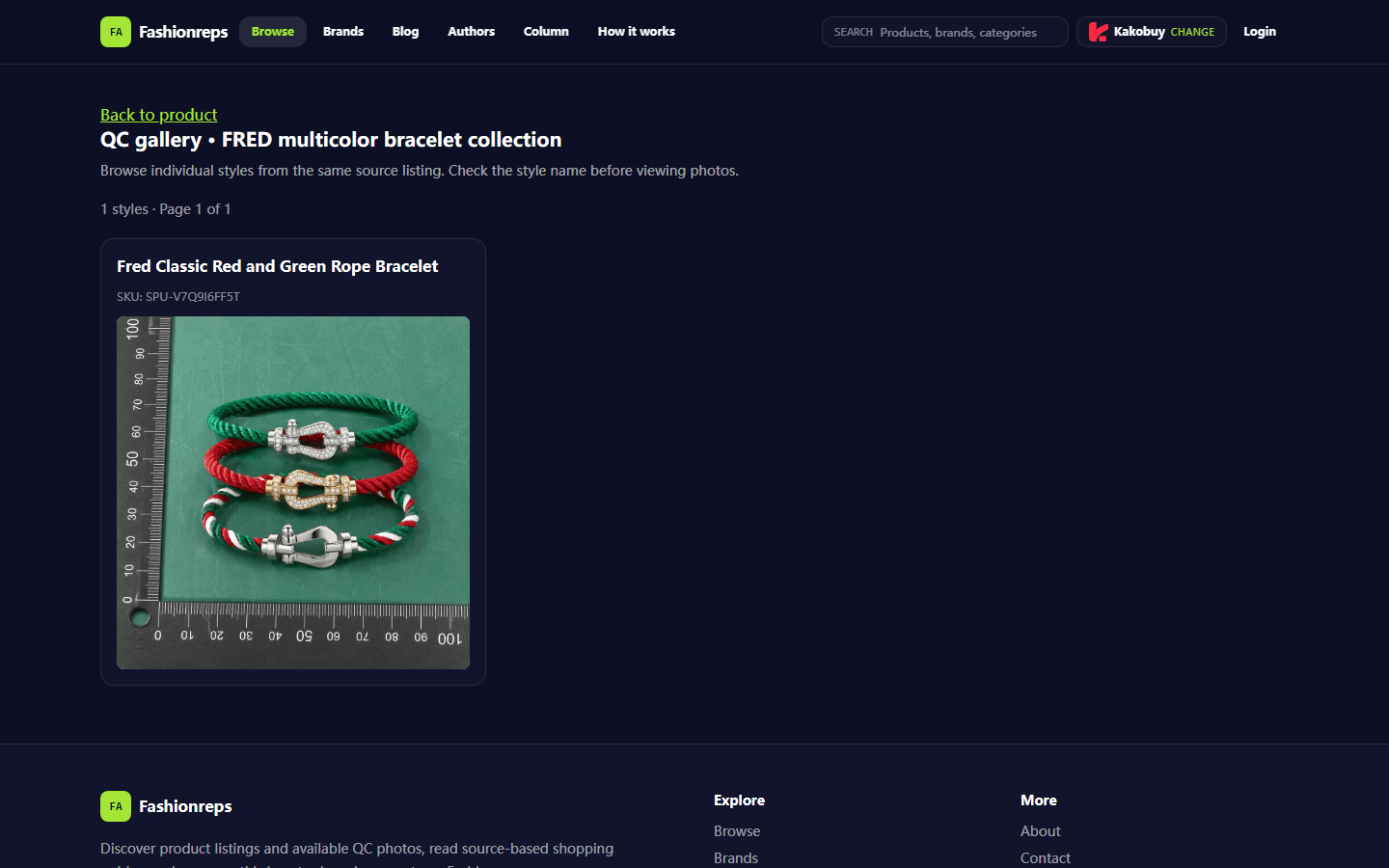
Image: Example QC page for a FRED multicolor bracelet collection on Fashionreps. The page shows one viewable style from this source, named Fred Classic Red and Green Rope Bracelet, with SKU SPU-V7Q9I6FF5T.
Specific Problems to Address in Fred Link Association Troubleshooting
First, specify what "associated information not showing" means. You need to record which type of information is missing:
- Product name not appearing.
- Product image or QC page not appearing.
- SKU, style, or source product not recognized.
- Selected shopping agent not showing.
- Product is displayed but hasn't been linked to an order or cart.
- Page keeps loading, returns blank results, or says the link is invalid.
Different symptoms require different verification scopes. Don't equate "the product page opens" with "the link has been successfully parsed," and don't equate "the product was parsed" with "order association has been established." These three stages need separate confirmation. 🔎
Save Evidence of Product Page, Submission Page, and Current Time First
Before refreshing, going back, or resubmitting, save the following:
- The full URL of the Fred product page.
- The full URL you used for submission, and the fields shown on the submission page.
- The result after submission, any prompt text, or empty state.
- Current date and specific time, noting the time zone.
- The name of the shopping agent you selected.
- Product name, style, SKU, or other identifying fields visible on the page.
- If redirects occurred, record whether the URL before and after redirect are the same.
Screenshots should only contain what's needed for troubleshooting. Order numbers, shipping addresses, phone numbers, payment information, and full personal profiles should not be made public; if present in screenshots, they should be redacted before sharing. 📎
The given Fashionreps page evidence shows that the product browsing flow includes a shopping agent selection entry, and the QC page displays source product name and style information. But this only proves the page has corresponding display structures; it doesn't prove your submission completed the association, nor that a shopping agent accepted the order.
Check Link Format, Redirect Result, and Field Completeness
Check in the following order to avoid repeated actions before pinpointing the issue:
- Copy the address from the product page; don't type it manually or truncate parameters.
- Open the copied address in a new browser tab and confirm the page loads stably.
- Observe whether there are multiple redirects, jumps to a login page, homepage, or unrecognized page.
- Verify the page clearly shows a product name, not just a category, search result, or empty container.
- Confirm necessary fields like style, color, size, or SKU exist; if the product lacks these fields, don't fabricate or supplement them.
- If the page requires selecting a shopping agent first, confirm the selection is saved and record the chosen name.
- After reopening the page, check if the selection persists. If it resets to default after refresh, the association may only be stored on the current page, not persisted.
It's recommended to use a record table to avoid mixing different products or submissions:
| Verification Item | What to Record | What Not to Infer |
|---|---|---|
| Product page load | Whether it opens, stability | Page opens ≠ link parsed |
| Product fields | Name, style, SKU visible | Name present ≠ order created |
| Redirect result | Redirect to login, homepage, agent page | Redirect success ≠ remote saved |
| Agent selection | Selected name and state after refresh | Name appearing ≠ order created |
| Submission feedback | Prompt text, empty state, or error | No error prompt ≠ submission success |
Distinguish Page Loading, Link Parsing, and Order Association Issues
Page loading issues typically manifest as the page not opening, content continuously spinning, key areas empty, or the same state recurring after refresh. In such cases, save a screenshot and timestamp first, and don't repeatedly click submit; you can open the same product page in a new tab for comparison without changing order status.
Link parsing issues usually occur when the address is accessible, but the system cannot read product name, style, SKU, or source information. Focus on whether you copied the full product address, and whether you mistakenly used a search page, tag page, image URL, or expired redirect link. If the parsing result remains empty, save the original address, parsed page state, and visible product fields together.
Order association issues occur after product information has been displayed. For example, the page can display the Fred product and style, but the cart, order draft, or agent page doesn't show the corresponding item. In this case, don't resubmit the product as a new item, as repeated operations may cause duplicate orders, duplicate entries, or indistinguishable records. First confirm whether there is already a pending record, then inquire about the current association status through official support channels. 🛑
Conditions to Confirm Before Resubmitting
Only consider a resubmission when all the following conditions are met:
- The original submission record has been saved.
- There is currently no pending record or order draft for the same product.
- The page loads stably and shows a clear product name.
- Necessary style, SKU, or other identifying fields are visible.
- Shopping agent selection is clear and hasn't abnormally disappeared after refresh.
- The previous submission didn't return a success indicator, nor show a created order or associated record.
- You have confirmed that resubmitting won't create duplicate orders, duplicate payments, or duplicate warehouse tasks.
If any condition cannot be confirmed, stop submitting. Especially avoid "forcing" parsing by modifying product names, fabricating SKUs, deleting key parameters, or using unknown redirect addresses. This makes it harder for support staff to diagnose the original issue and may associate the wrong product with the order.
If you must retry, do it only once, and record the retry time, original address used, selected agent, and complete result. After submission, reopen the relevant page or record location to confirm whether persistent associated information actually appeared; merely seeing a button feedback or transient prompt is not enough to prove remote saving. ✅
When to Provide Screenshots and Links via Official Support Channels
In the following situations, stop trying on your own and seek help through the official support channels provided by Fashionreps or the actual shopping agent:
- The same full address still opens in a new tab, but product name or SKU cannot be parsed.
- Product fields are displayed, but the association record disappears after refresh or re-entry.
- The page indicates success, but there is no reassessable association record.
- You cannot determine whether an order, cart item, or warehouse task has been created.
- The page shows duplicate records, amount anomalies, agent selection anomalies, or contradictory statuses.
- You need support personnel to check backend logs or remote association status.
Keep the assistance request minimal: product page URL, submission time, selected agent, visible product name or SKU, symptom screenshots, and the verification steps you've already completed. Do not send passwords, payment card information, full shipping labels, passport information, or unmasked personal addresses. If support staff need order identifiers, provide only the parts they explicitly request after privacy processing.
Don't treat the public QC page as order proof. The example page can display product name, style, and QC image entry, but it cannot replace the shopping agent's order status, payment records, or warehouse intake confirmation.
When to Stop Resubmitting to Avoid Duplicate Orders
Stop further submissions if any of the following occurs:
- The page already shows a pending record for the same product.
- You cannot confirm whether the previous submission was successful.
- You have already received an order number, cart ID, or other association identifier.
- The page indicates processing, waiting for sync, or requiring manual confirmation.
- Product information has appeared, but only a subsequent field is temporarily missing.
- Support staff have asked you to wait or provide supplementary evidence.
- Resubmitting could trigger duplicate payment, duplicate purchase, or duplicate warehouse tasks.
The safest action is to keep existing records, stop modifying the original address, and wait for clear feedback. If the platform ultimately confirms no association was established, then reprocess according to the steps provided by support staff. Don't test the same product with multiple agents or multiple accounts simultaneously, as this increases state confusion and duplicate order risk.
Final Action: Save Troubleshooting Records and Wait for Clear Feedback
After troubleshooting, organize the results into a reviewable record: original product address, submission time, page load result, redirect result, product fields, agent selection, whether persistent association appeared, screenshot locations, and current decision. If order or remote save status is not yet confirmed, write the record as "pending confirmation," not "successful."
This method is suitable for users who cannot determine what went wrong with link, parsing, and order association separately; it is not meant to bypass platform verification, skip payment confirmation, alter real order status, or speculate on undisclosed backend data. Its main benefit is reducing repeated submissions and duplicate order risk, at the cost of time spent saving evidence and waiting for official confirmation. Only when the original submission failed, there is no pending record, product fields are complete, and retrying won't create duplicates, is a single controlled retry appropriate; otherwise, stop and seek help.
Continue reading